When your subscription is in a "Past Due" status due to a failed payment, your account access may be restricted. This article will guide you through resolving this issue and restoring your account to good standing.
Understanding the "Past Due" Status
If your payment fails, your subscription status will change to "Past Due." You will see a prominent notification in your account profile informing you of the abnormal status and providing solutions.
Key Solutions:
-
Retry Payment: The system will attempt to charge your original payment method again.
-
Update Payment Method: If the retry fails, you can update your credit card or other payment information.
Step-by-Step Instructions
Please follow one of the processes below based on your situation.
Option 1: Retry Payment
If your original payment method (e.g., credit card) still has sufficient funds, you can attempt an immediate retry.
- Log in to your account and navigate to the "Account Profile" page.
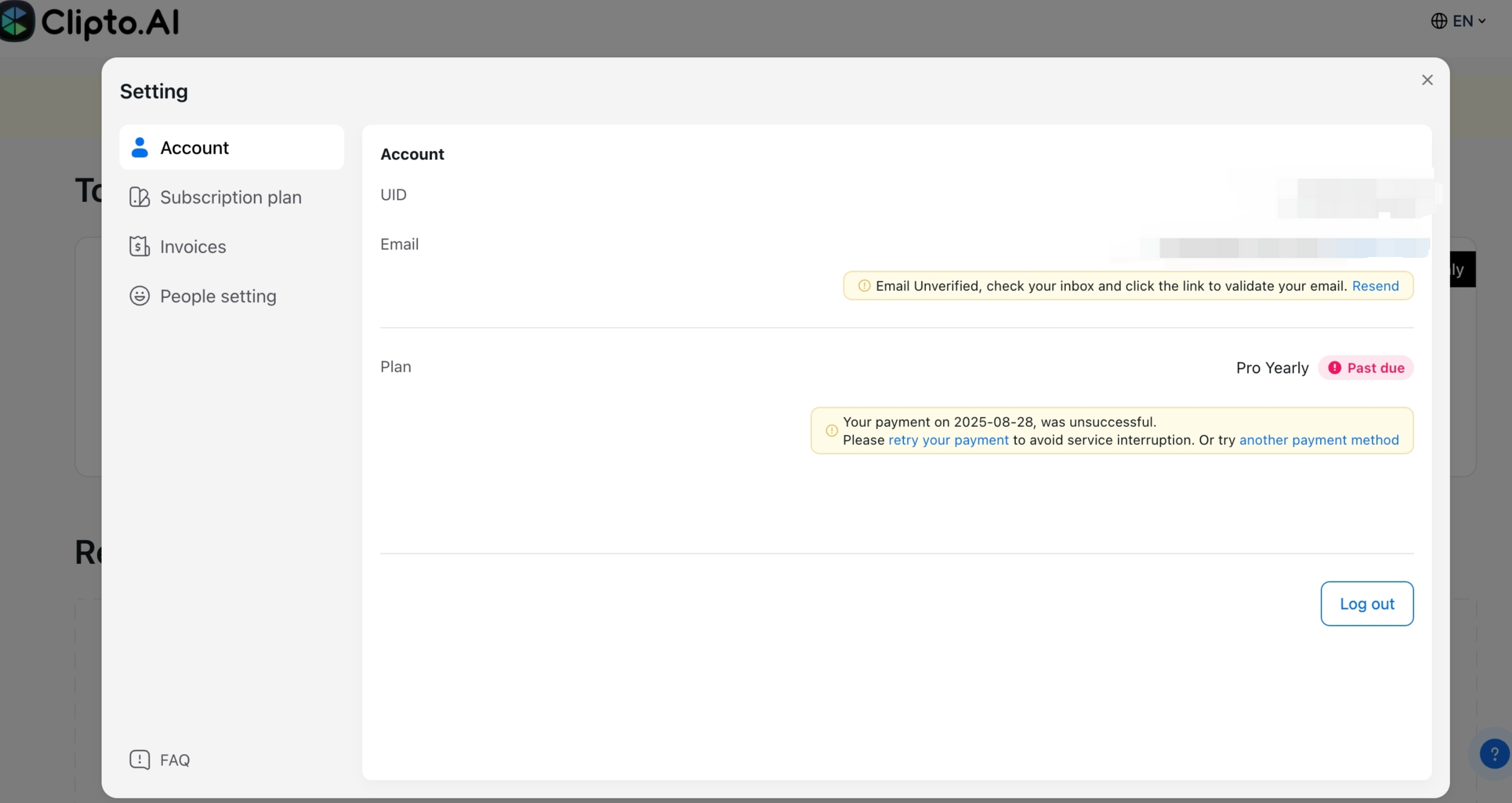
- You will see a prominent red "Past Due" status banner.
- Click the "Retry Your Payment" button within the banner.
- The system will immediately attempt to charge your original payment method again.
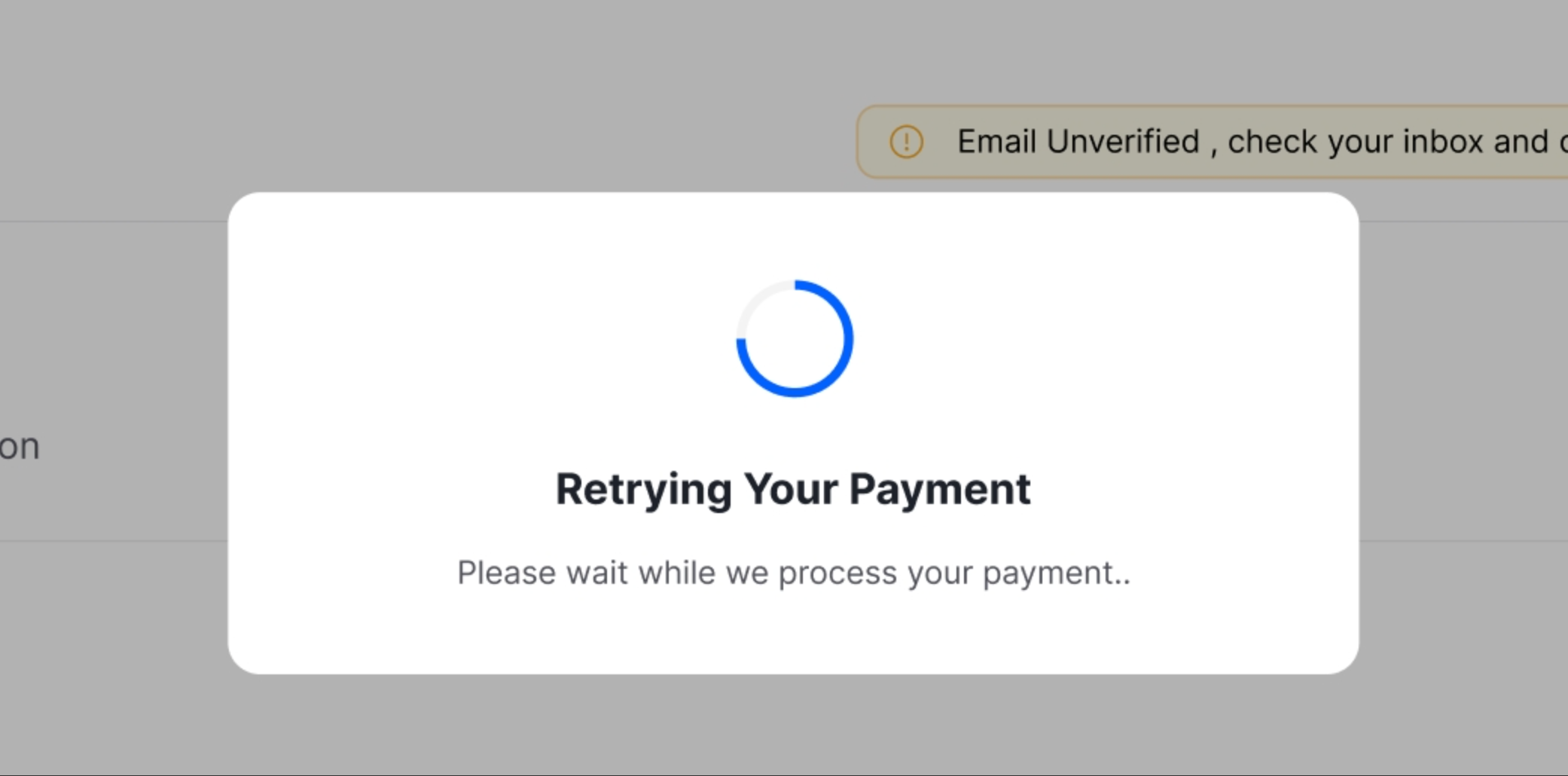
Outcome:
-
Payment Successful: The page will display a success message. Your account status will be restored to normal immediately, and all services (such as transcription) will be reinstated.
-
Payment Failed: If the retry fails, the system will notify you of the reason and recommend that you "Update Payment Method."
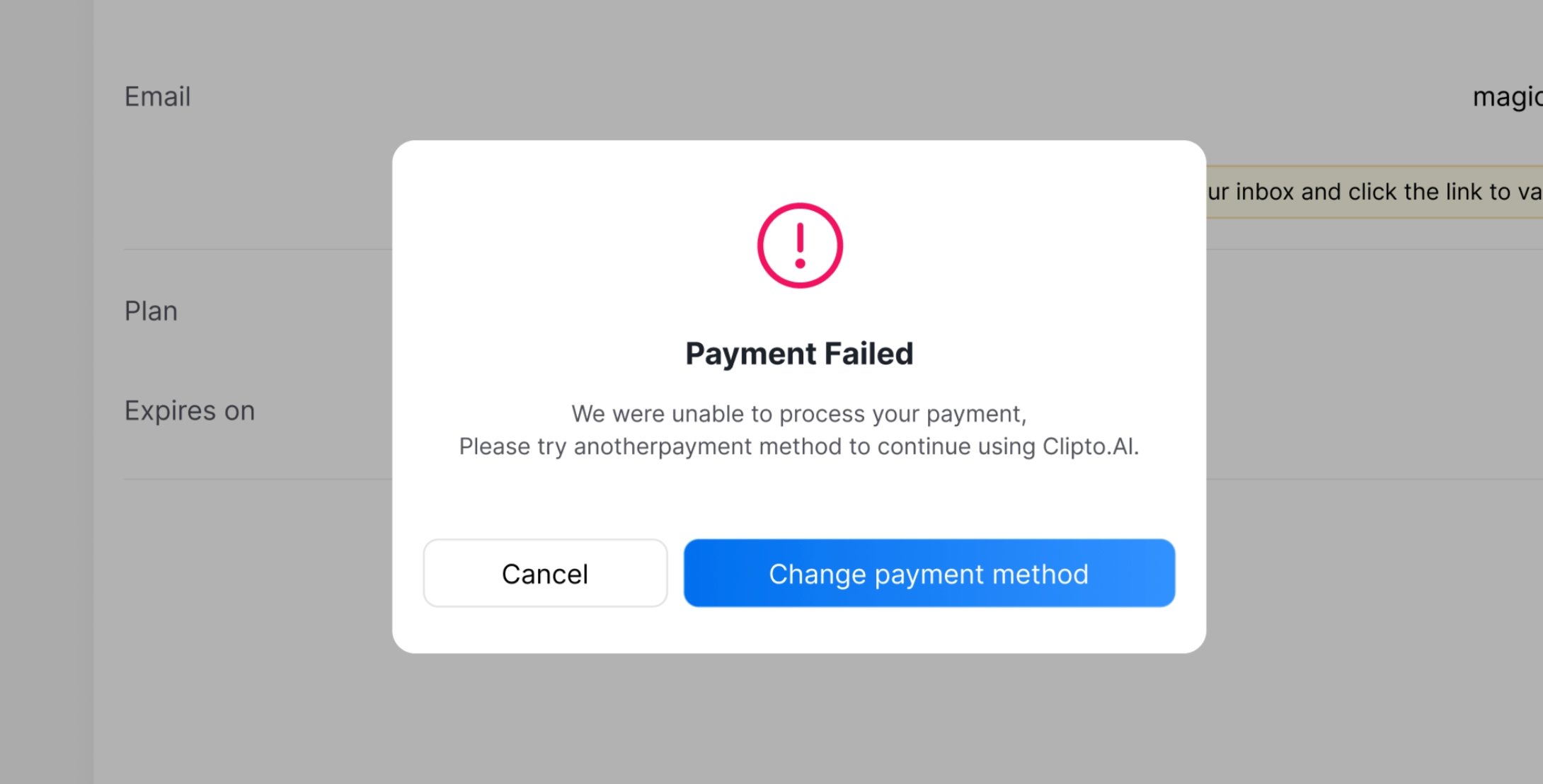
Option 2: Update Payment Method & Complete Payment
If the payment retry fails, or if you prefer to use a new payment method directly, please follow these steps.
-
Within the "Past Due" notification banner, click the "Update Payment Method" link or a similar button.
- You may also see an "Add another payment method" link in the payment failure pop-up window.
-
You will be securely redirected to a payment management page hosted by our payment partner, Stripe.
-
On this page, you can:
- Add a new credit card or other supported payment method.
- Remove old or invalid payment methods.
-
Once you successfully add and verify a new payment method, the system will automatically attempt an immediate charge to settle your overdue balance.
Outcome:
- Payment Successful: After successful payment, close the Stripe tab and return to your account page. Your account status will automatically update to "Active", and all services will be restored immediately.
- Payment Failed: If the charge with the new payment method still fails, please repeat the steps above, ensuring the card information you entered is correct and the card has sufficient funds.