
Looking for a free video trimmer to cut or shorten your videos? Whether you want to remove unwanted footage, extract specific clips, or turn long videos into short highlights, the right tool can make the process quick and easy. In this guide, we’ll compare 6 free video trimmers you can use online or offline and show you how to trim videos on the web or your PC, including how AI can help automate video trimming and find highlights in longer videos.
Part 1. 6 Popular Free Video Trimmers Online or Offline
Choosing the right video trimmer depends on your editing needs, file size, and whether you prefer working online or offline. Some tools are ideal for quickly cutting unwanted footage, while others offer additional editing features or AI highlight extraction. Here are six popular video trimmers to consider.
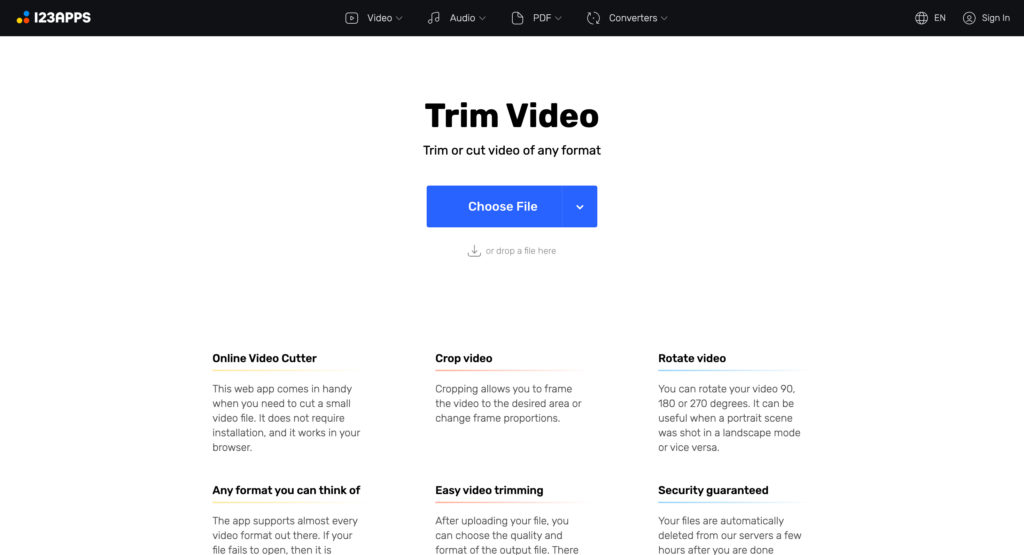
1. Free Online Video Trimmer – Online Video Cutter
Online Video Cutter is a browser-based tool for trimming videos without installing desktop software. You can upload a video, select the start and end points, and export the trimmed clip in your preferred format. It also supports cropping and rotating videos, making it a convenient option for quick edits.
The tool supports files up to 4 GB, although processing larger videos may take longer depending on your device and internet connection.
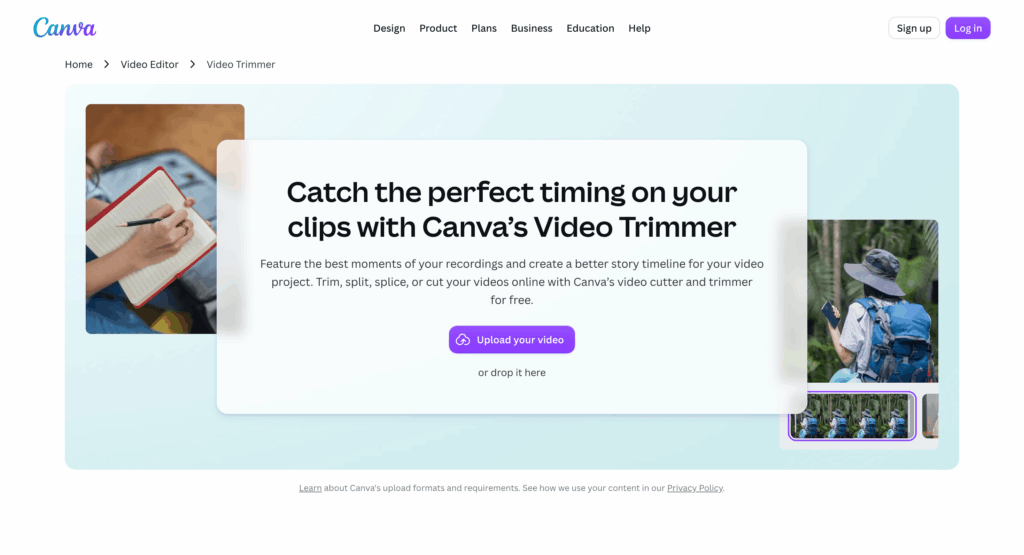
2. Free Online Video Trimmer – Canva
Canva is an online video editor that combines basic trimming with creative editing features. You can drag the ends of a video clip to adjust its duration, split footage into separate segments, and add text, music, transitions, and effects.
This approach also offers an AI-powered Highlights feature to identify interesting moments and generate shorter clips. It is a useful choice for creators who want to trim videos and prepare content for social media in one place.
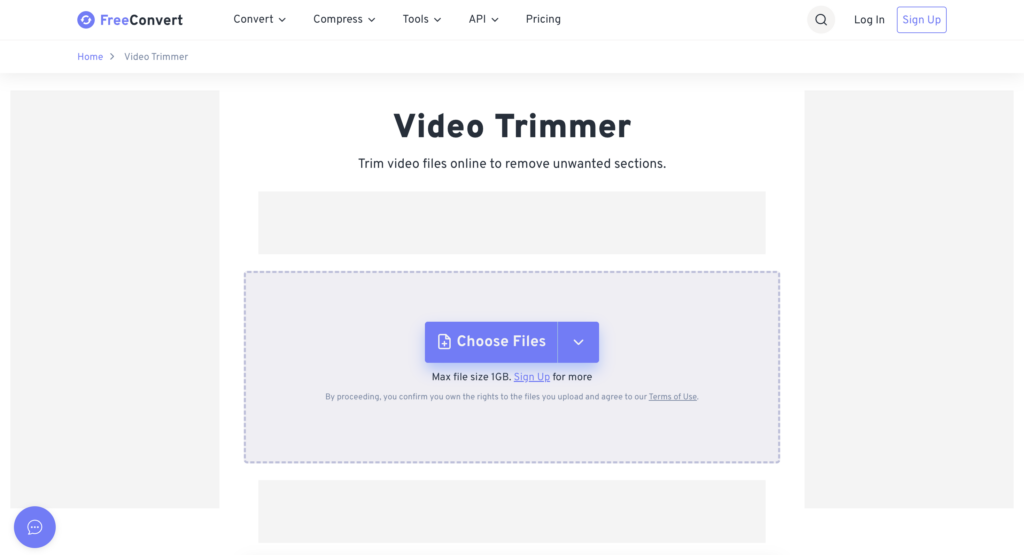
3. Free Online Video Trimmer – FreeConvert
FreeConvert is a straightforward online video trimmer for removing unwanted sections from video files. Upload a video from your device or a supported cloud storage service, choose the start and end points, and trim the clip.
It supports more than 40 video formats, including MP4, MOV, AVI, and WebM. The free tool supports files up to 1 GB, making it suitable for everyday trimming tasks, though larger files may require an upgraded plan.
4. Free Online Video Trimmer – Adobe
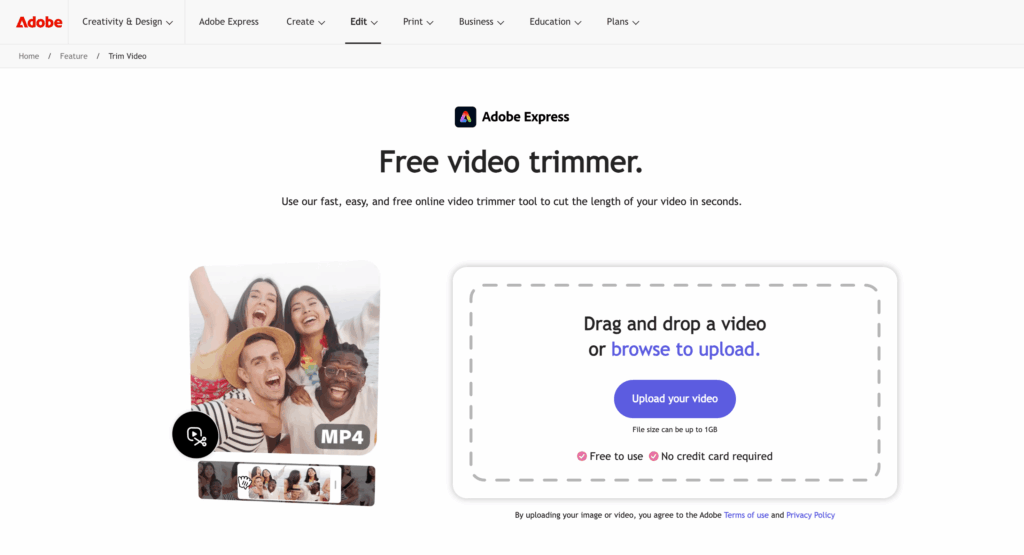
Adobe Express provides a simple online video trimmer for shortening clips without using professional editing software. You can upload a video, drag the trimming handles or enter specific time values, and export the result.
Adobe Express allows uploads of up to 1 GB and supports videos up to 60 minutes long. It is a good option for users who want precise trimming and may also need other basic design or video editing features.
5. Free Online Video Trimmer – Clideo
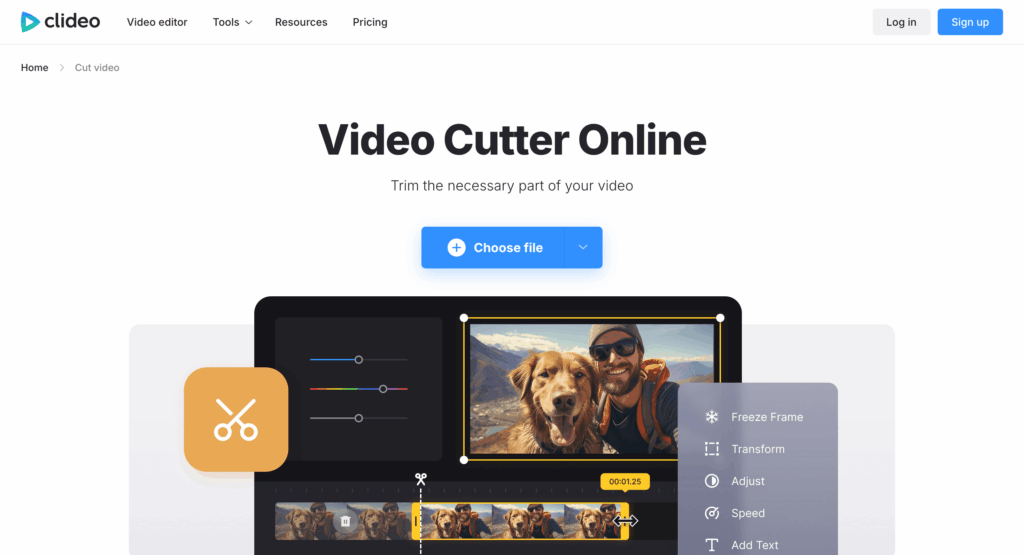
Clideo offers an easy-to-use online video cutter that lets you extract a specific section or remove unwanted footage. Upload your video, adjust the selection markers, and export the trimmed clip.
You can also change the output format and add fade-in or fade-out effects. Clideo works with popular formats like MP4, MOV, and AVI, and lets free users trim videos up to 500 MB in size. It works well for short clips and quick edits without installing software.
6. Free Offline Video Trimmer – Clipto
Clipto is an AI-powered video trimmer for Mac and Windows that lets you cut and edit videos locally without uploading your footage to the cloud. With no video file size limits, it makes trimming large videos easier while keeping your files private.
You can also trim online videos, such as YouTube videos, by simply pasting the video URL into Clipto and letting AI help you start to trim online video.
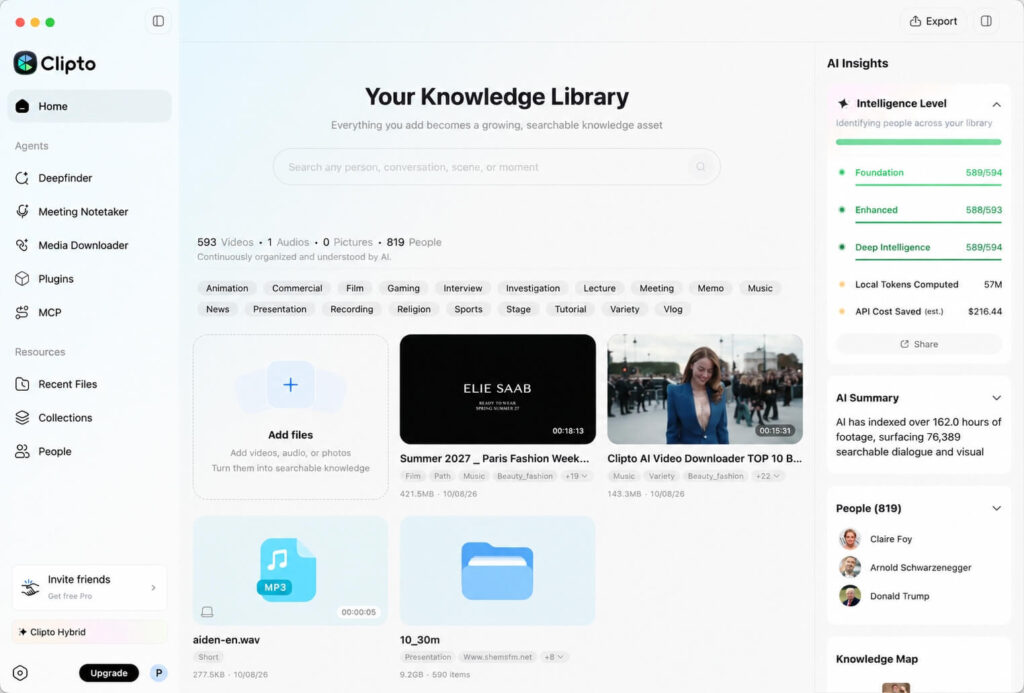
Unlike traditional video trimmers that require you to drag timeline handles and manually review footage frame by frame, Clipto uses AI to automate the cutting process. Simply describe what you want to keep or remove. For example, you can ask Clipto to keep only the scenes of someone walking along the beach and remove all other scenes. Clipto can then generate a video based on your instructions, reducing the need for tedious manual trimming.
This editing tool also helps you turn long videos into short clips and generate highlights for social media, match B-roll footage, turn scripts to videos, and quickly find specific moments in your videos without manually scrubbing through the timeline. Whether you’re editing interviews, podcasts, or other long-form content, Clipto can help streamline your workflow and speed up video editing.
Part 2. How to Trim Video for Free
You can trim a video for free using an online video trimmer or an AI-powered desktop tool. Online tools are convenient for quick edits, while AI-powered software can help automate the process, especially when working with long videos. Follow the steps below to find the method that works best for you.
1. How to Trim Video Online for Free
If you only need to shorten a video or remove unwanted footage, an online video trimmer is a convenient option. You can trim clips directly in your browser without installing desktop software.
Step 1. Choose an online video trimmer. Open a free tool such as Online Video Cutter, FreeConvert, or Clideo.
Step 2. Upload your video. Select a video file from your computer and wait for it to load.
Step 3. Select the section to keep. Drag the start and end handles on the timeline to choose the desired segment. Some tools also let you enter specific timestamps.
Step 4. Preview your video. Play the selected section to make sure you’ve kept the right moments and removed unwanted footage.
Step 5. Export and download. Apply the trim, export the video, and download the clip to finish the process of trimming video online.
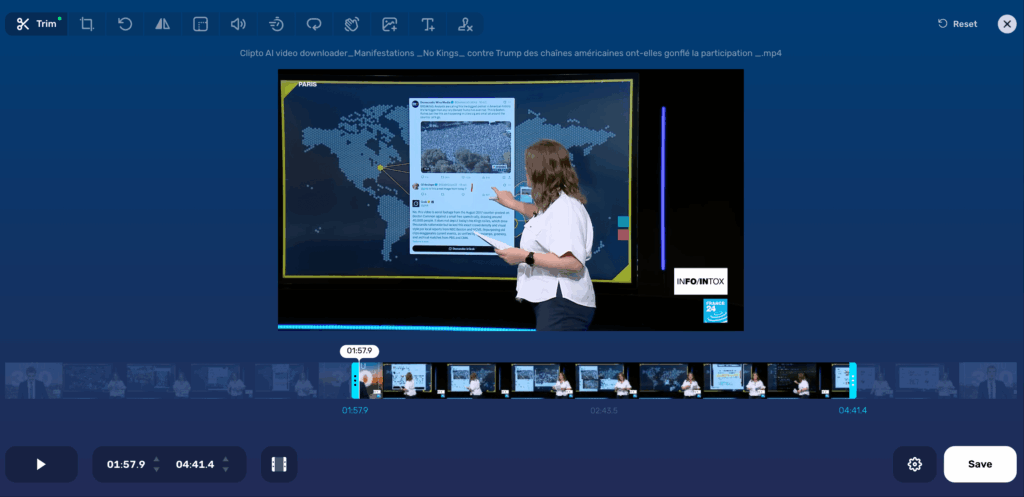
Attention: This method works well when you know exactly where your video should start and end. However, if you need to remove multiple scenes from a long video, you may have to review the footage and adjust the timeline repeatedly.
2. How to Trim Video Automatically for Free
If you want to remove specific scenes or extract highlights without manually reviewing an entire video, Clipto offers an AI-powered alternative on Mac and Windows. Instead of dragging timeline handles and cutting clips one by one, you can describe the content you want to keep or remove and let AI help automate the editing process.
Step 1. Open Clipto on your Mac or Windows PC and import the local video you want to trim.
To trim an online video, such as a YouTube video, click the Media Downloader feature and paste the video URL to retrieve the video.
Step 2. Click the Deepfinder feature in the left sidebar to start to cut your video.
Step 3. Describe what you want to trim. Use a natural-language instruction to specify the scenes you want to keep or remove. For example, you could search for “scenes featuring a woman wearing a blue dress.”
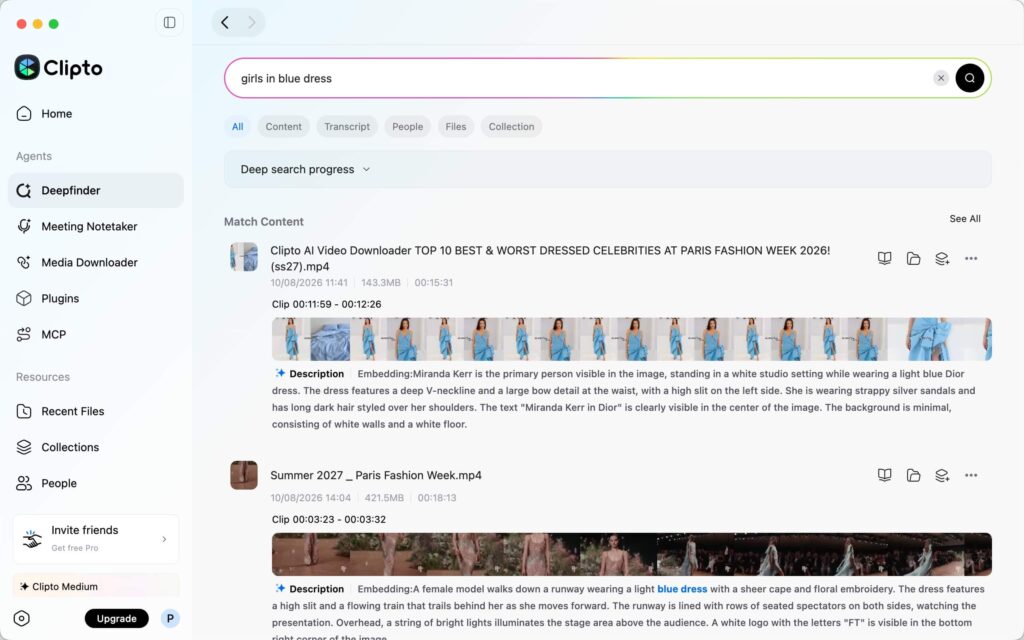
Step 4. Review the selected footage and click the Download button to export your clip for further editing or sharing.
Attention: If you frequently work with long recordings, interviews, podcasts, or other extensive video content, AI-powered trimming can reduce the time spent searching for scenes and making repetitive cuts.
Beyond video trimming, Clipto also supports AI-powered workflows through its MCP feature. You can use it to extract highlights for social media, turn long-form content into short clips, convert scripts into videos, and match relevant B-roll footage.
Conclusion
The best free video trimmer depends on your editing needs. Online tools like Canva, FreeConvert, and Clideo are convenient for quick cuts, while Clipto offers an AI-powered alternative for trimming local videos on Mac and Windows. If you regularly work with large videos or long-form content, AI-powered video editing can help you save time and simplify your workflow.
FAQs
1. How to Trim a Video in VLC?
VLC Media Player doesn’t have a traditional video trimming tool, but you can use its recording feature to save a specific section of a video. Open the video in VLC, navigate to the starting point, click Record, and stop recording when you reach the desired endpoint. VLC saves the recorded segment as a separate video file.
2. How to Trim or Cut an MP4 Video?
To trim or cut an MP4 video, use an online video trimmer or desktop video editing software. Upload or import your MP4 file, select the section you want to keep or remove, and export the edited video. For large MP4 files or more complex edits, a desktop tool like Clipto can help you find specific scenes and streamline the trimming process.
3. What Is the Best YouTube Trimmer?
The best YouTube trimmer depends on your needs. Online tools are convenient for quick edits, while desktop tools like Clipto let you work with downloaded YouTube videos and cut YouTube video. With Clipto, you can paste a supported YouTube URL into its Download feature to retrieve the video, then use Deepfinder to find relevant moments and cut clips.